
Pairing headphones to your Woojer Series 4
Some headphones and phones (especially iPhone with AirPods, and Android devices with Fast Pair or Samsung Seamless Pairing) show a pop-up the moment the headphones are turned on.
This native pop-up encourages the user to connect the headphones directly to the phone.
When this happens, the Woojer cannot complete the correct Bluetooth chain:
Phone → Woojer → Headphones
This article explains the issue and shows you exactly how to solve it.
1. Understanding the Bluetooth configuration
Woojer Series 4 is designed to work in a serial Bluetooth configuration.
This means:
Your phone connects to the Woojer.
The Woojer connects to your Bluetooth headphones.
Some mobile devices try to create their own connection path when headphones are nearby.
Examples include:
Apple AirPods pop-up
Fast Pair on Android and Google phones
Samsung Seamless Pairing
These systems try to connect the headphones directly to the phone, even when the Woojer needs to connect to them.
If you approve the pop-up, your phone grabs the headphones first.
Once the phone is connected to them, the Woojer cannot pair with them, which breaks the intended setup.
2. Ensuring that the Woojer will connect properly to your headphones
To make sure the Woojer is the device controlling the headphones, you must reject the phone’s connection request when the pop-up appears.
Here is the correct pairing flow.
Before You Start
Make sure to disconnect your headphones from your phone first.
You don’t need to unpair them — just disconnect.
This prevents your phone from auto-connecting while we set things up.
This prevents the phone from auto-connecting and keeps the process clean.
3. Pairing your Bluetooth headphones to your Woojer
Option A: During initial onboarding
Follow these steps when setting up your Woojer Series 4 for the first time.
Turn your headphones OFF.
Open the Woojer Device Manager on your phone.
Follow the on-screen instructions to connect your phone to the Woojer.
When prompted in the app to connect headphones:
Put your headphones in Pairing Mode.
If you don't know how to do that, refer to your headphones' manual.
Your phone may show a pop-up asking to connect.
Reject the connection request or close the pop-up:
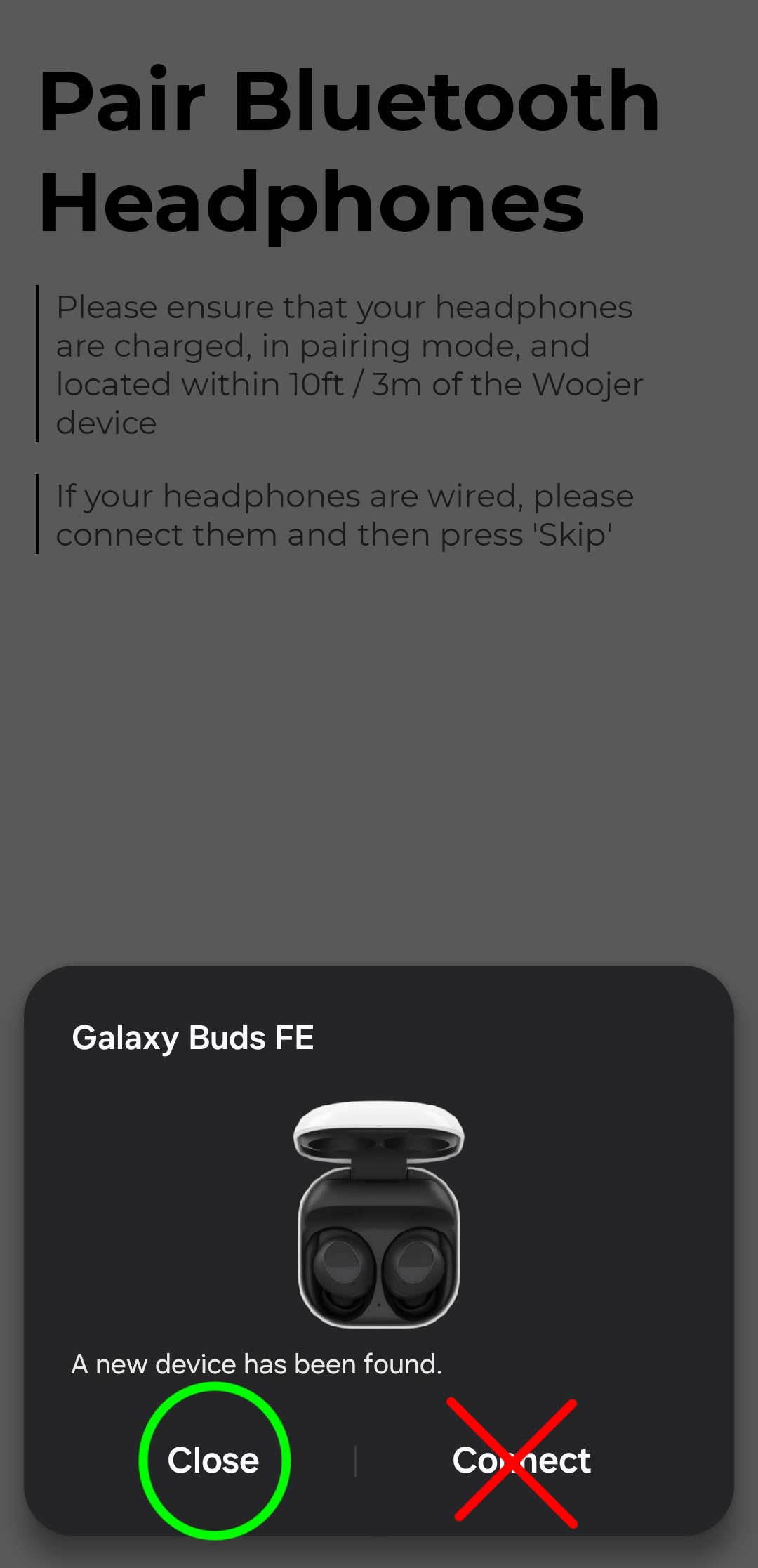
Allow the Woojer to discover and connect to the headphones.
Once the Woojer connects, the setup is complete.
Woojer now becomes the audio source for your headphones.
Option B: Adding headphones later (After the Woojer is already connected to the phone)
You can use these steps anytime from the app menu.
Turn your headphones OFF.
Open the Woojer Device Manager.
Confirm your Woojer is already connected to the phone.
Tap BT/Headset/Speakers in the app menu and choose Add Output.
- When prompted in the app to connect headphones:
Put your headphones in Pairing Mode.
If you don't know how to do that, refer to your headphones' manual.
Your phone may show a pop-up asking to connect.
Reject the connection request or close the pop-up:
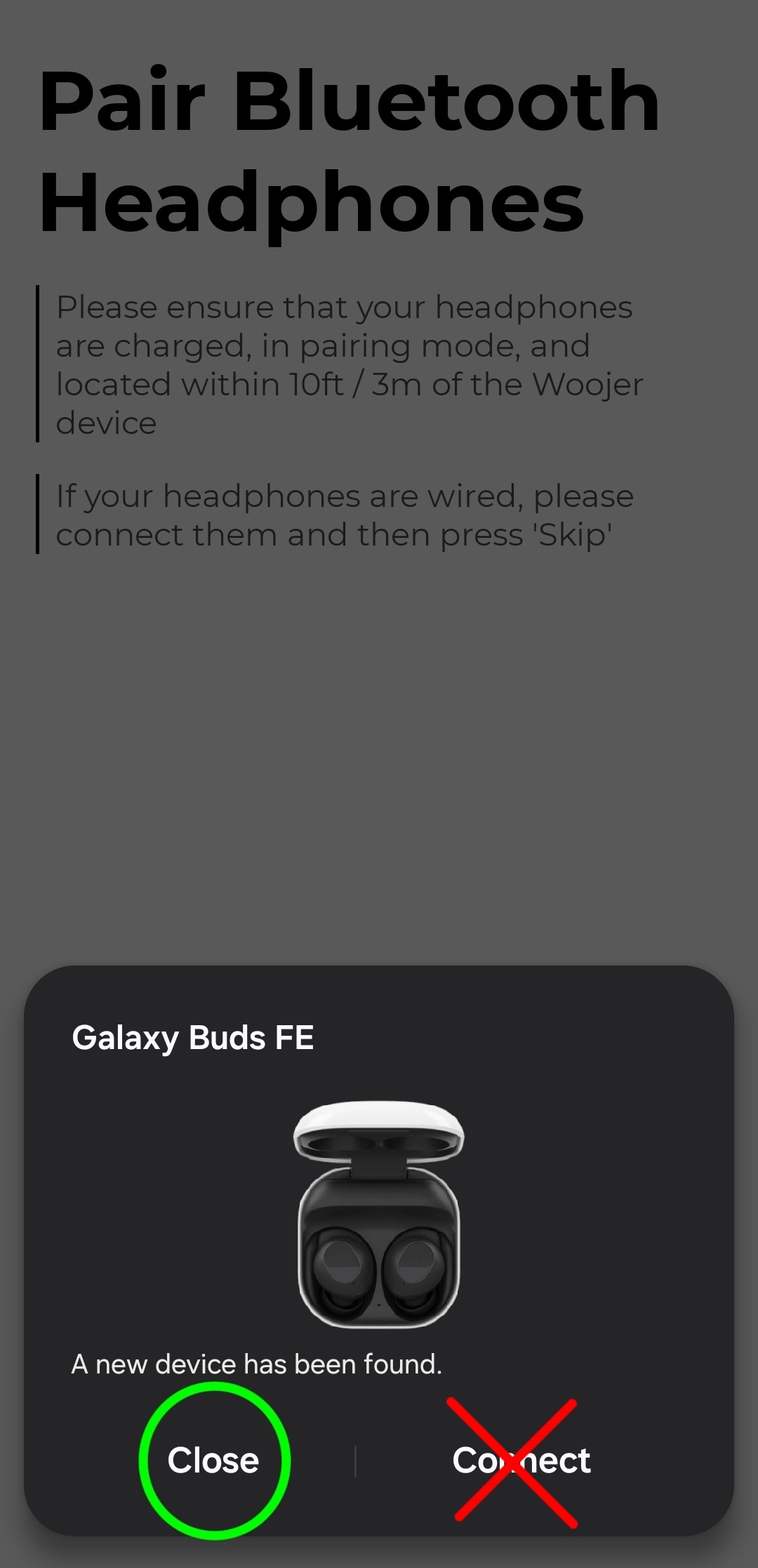
Let the Woojer pair with the headphones.
Woojer now becomes the audio source for your headphones.