
The Series 4 line of products comes with a dedicated application, which will enable you to take full control of your Woojer, manage its basic functions, control its audio settings, and perform firmware updates.
The Woojer application encompasses our latest improvements in the field and using BLE (Bluetooth Low Energy) the application can remain connected to your Woojer and provide you with useful information while your Woojer is connected to a different source or output.
The Woojer dedicated application is now available for download! Check out the following links:
Google Play Store
Apple App Store
You can follow the steps below to learn how to associate and pair Woojer with the application:
- Download the application to your mobile device through either the Google Play Store or the Apple App Store. The application is currently not available for Windows, macOS, or Linux and is only available for mobile.
- On the first start of the application, you will be requested to grant some location and Bluetooth permissions to it. Please make sure to grant these permissions on the OS level, as without them the application will have issues communicating with Woojer using BLE. All BLE applications require these permissions to operate properly.
This data will not be broadcast to an external server and is only used for connectivity purposes.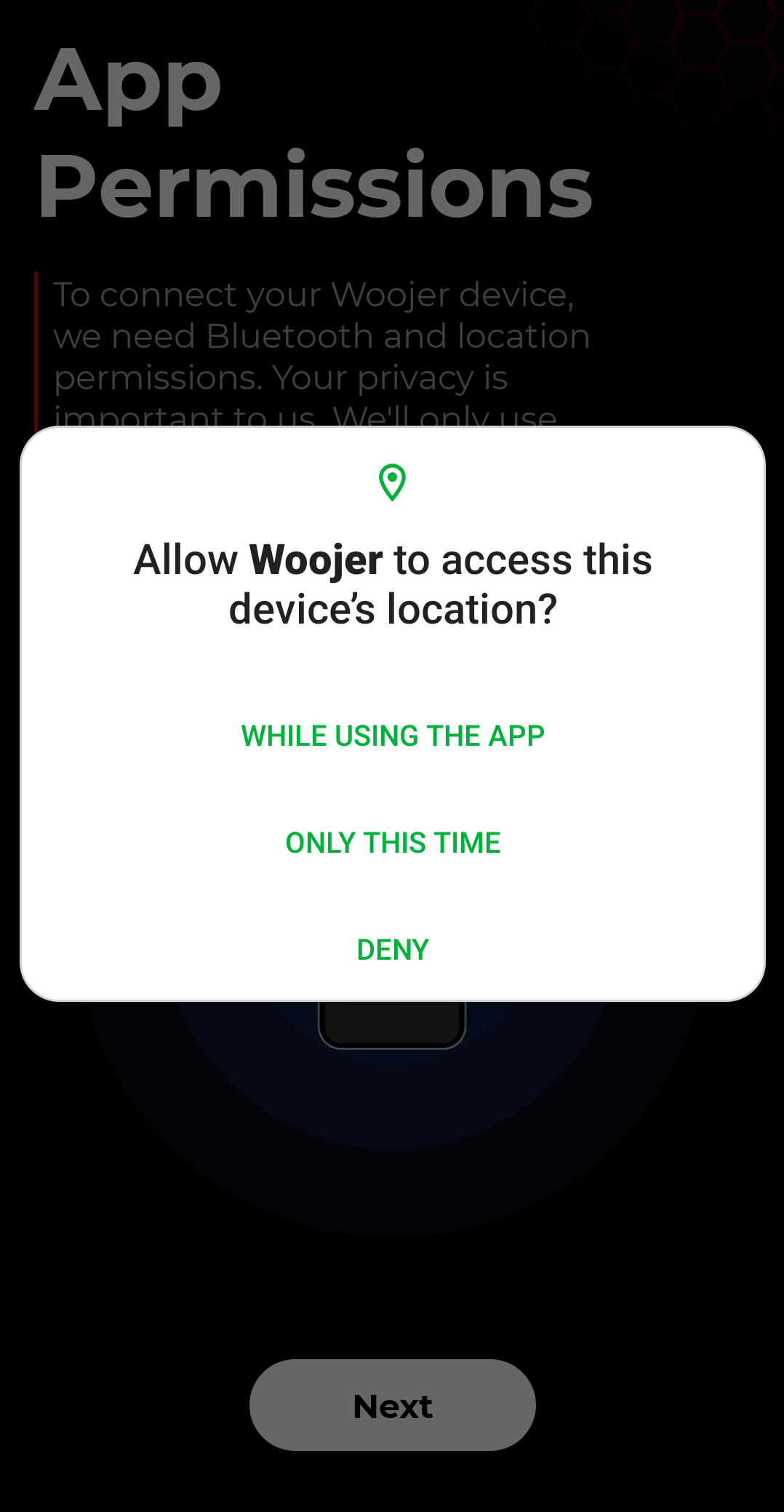
- After granting the requested permissions, you will be prompted to provide some personal details, like your name, email address, and phone number. The email and phone number are non-mandatory and can be skipped.
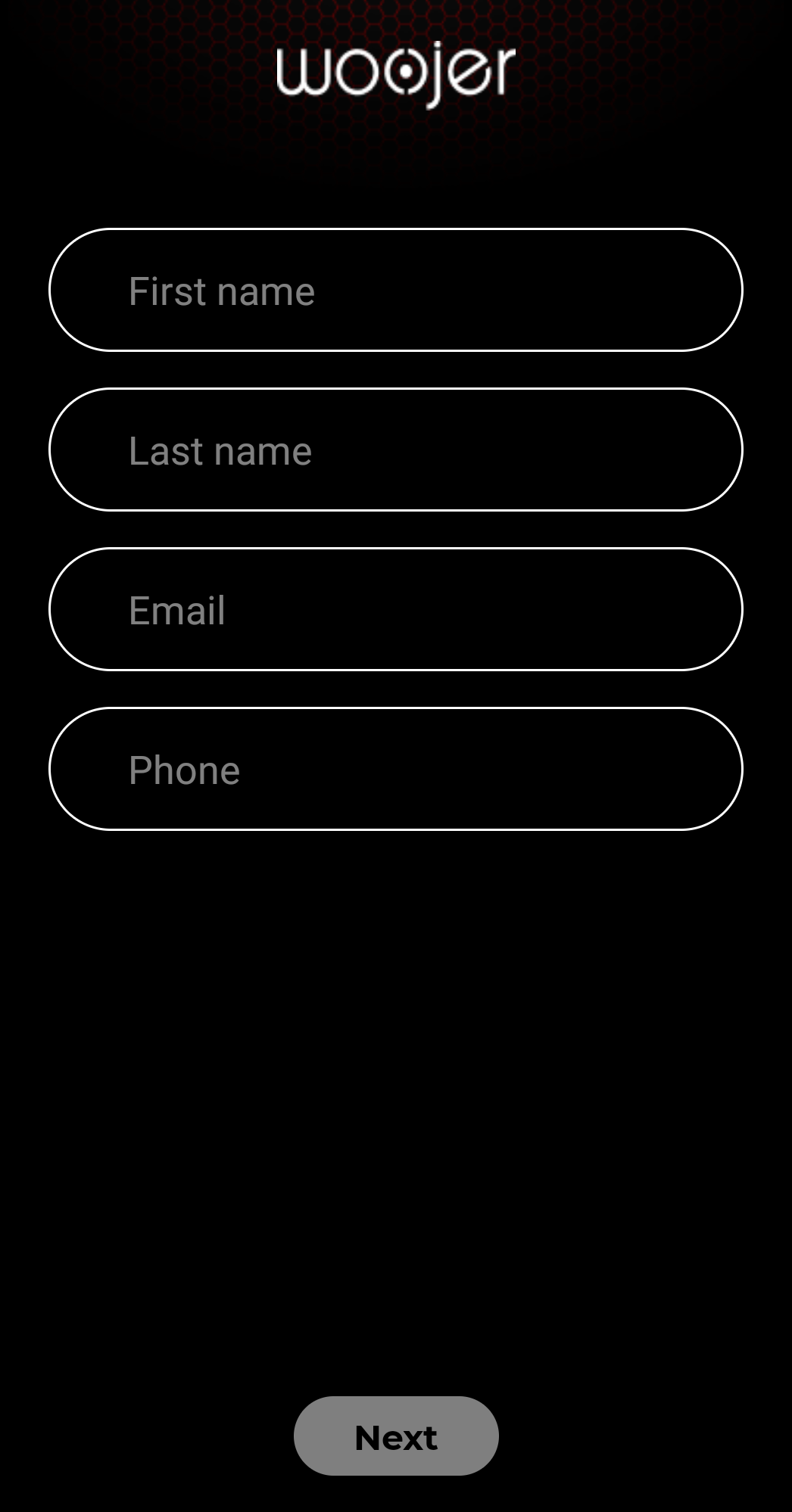
- After filling in all the requested information, the app association process will initiate. The app will detect your Woojer automatically. Wait until it says "you Woojer is associated" and click "Next".
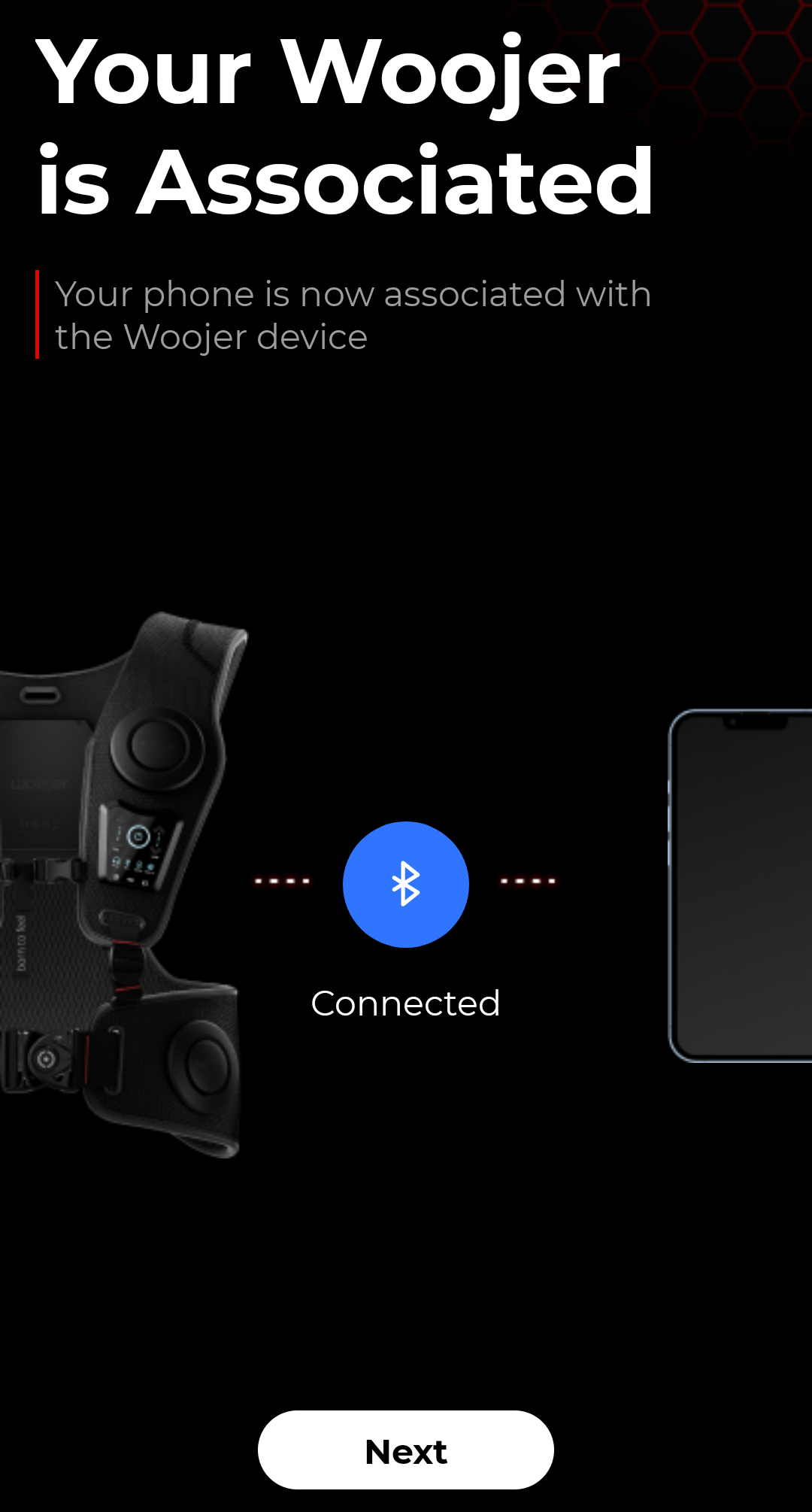 (For this article, we'll perform the pairing process with a Vest - but the instructions are nearly identical to the Strap.)
 - If your Woojer is running older firmware, you'll be prompted to update the firmware of your Woojer. This step is mandatory if your Woojer is running older firmware and cannot be skipped.
If you are prompted to update the Firmware, please press the "Update" button and make sure your Woojer is connected to a compatible charger.
For the Vest Series 4, please make sure your charger is connected to the USB-C port located on the back of the Vest.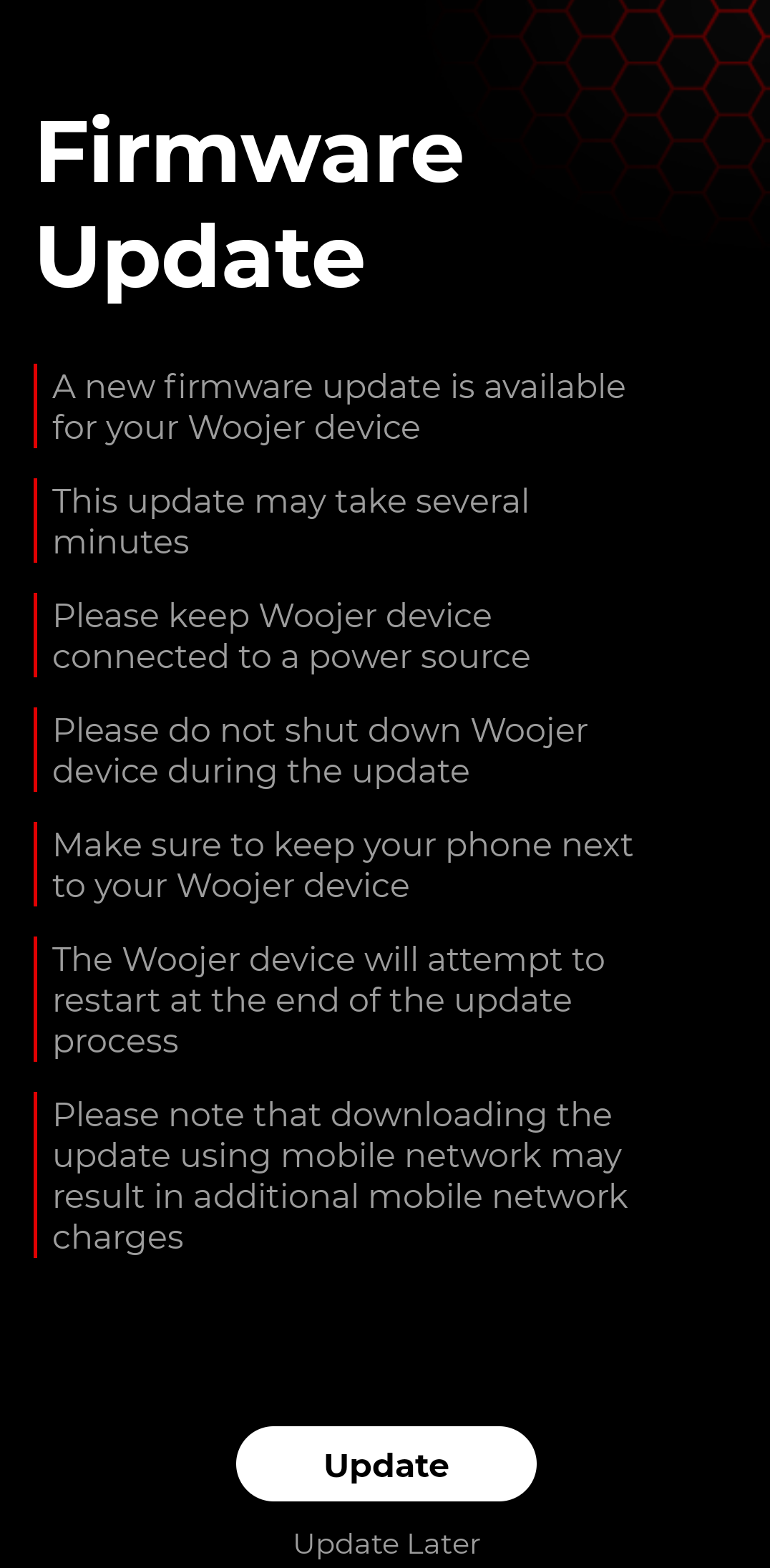
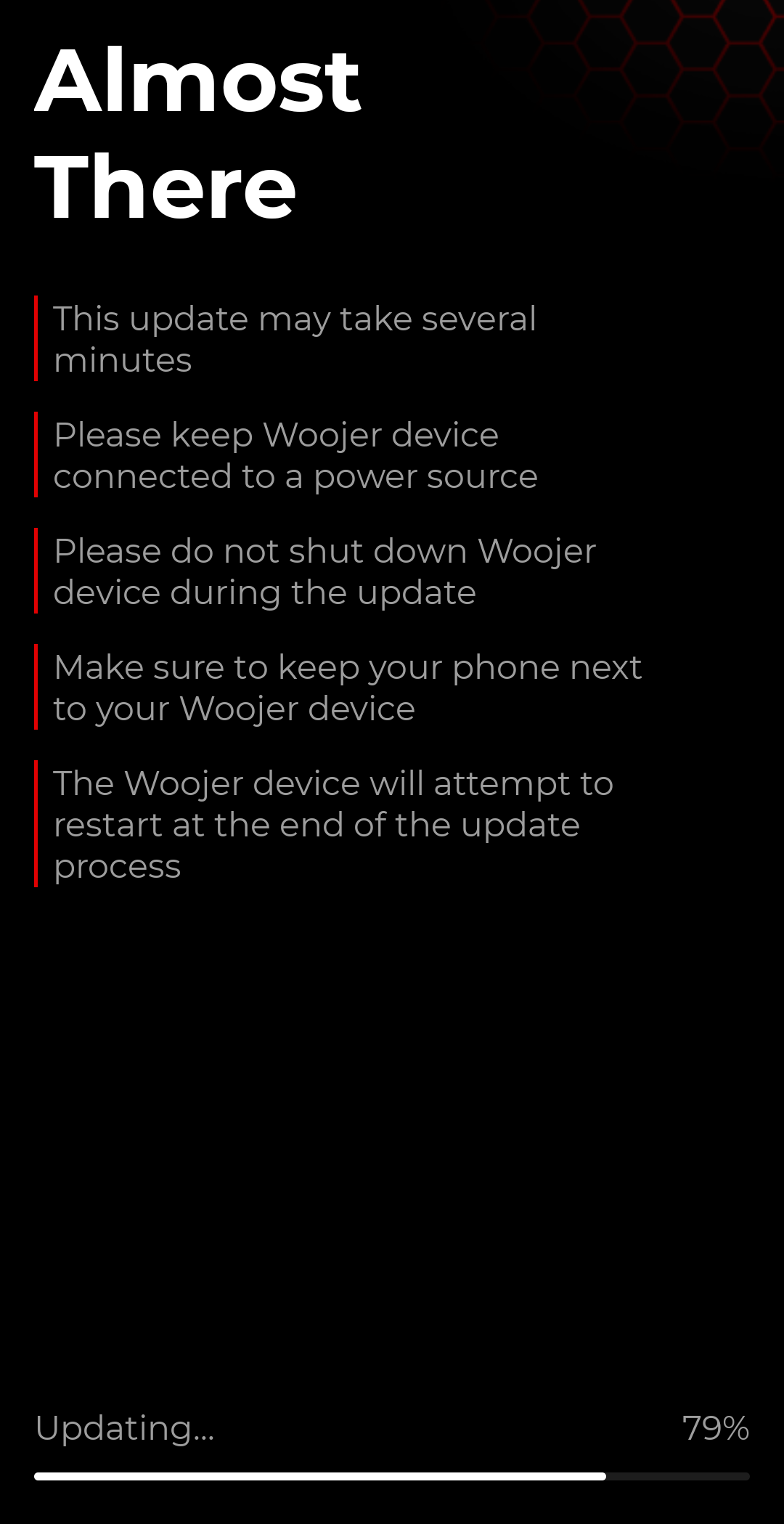
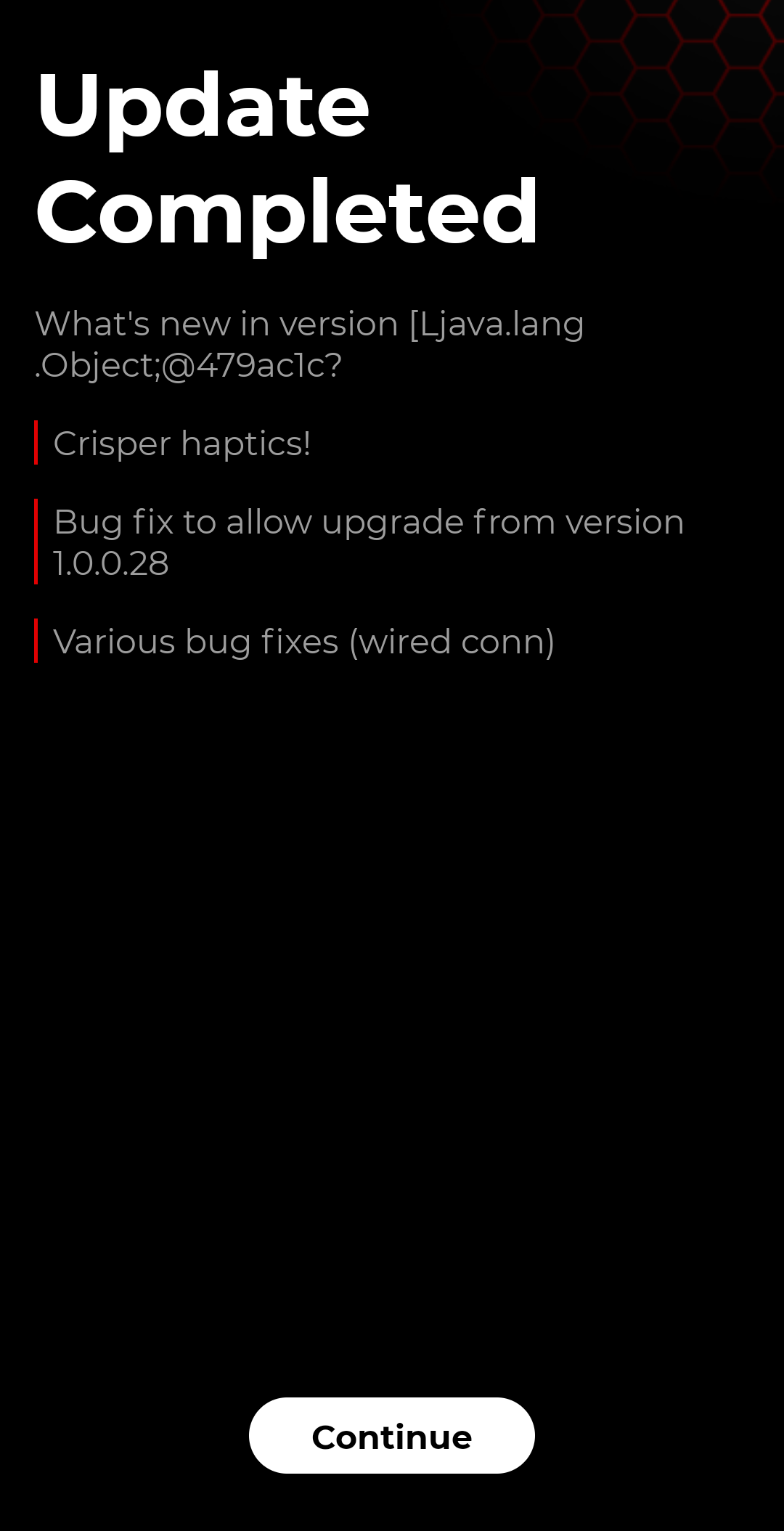
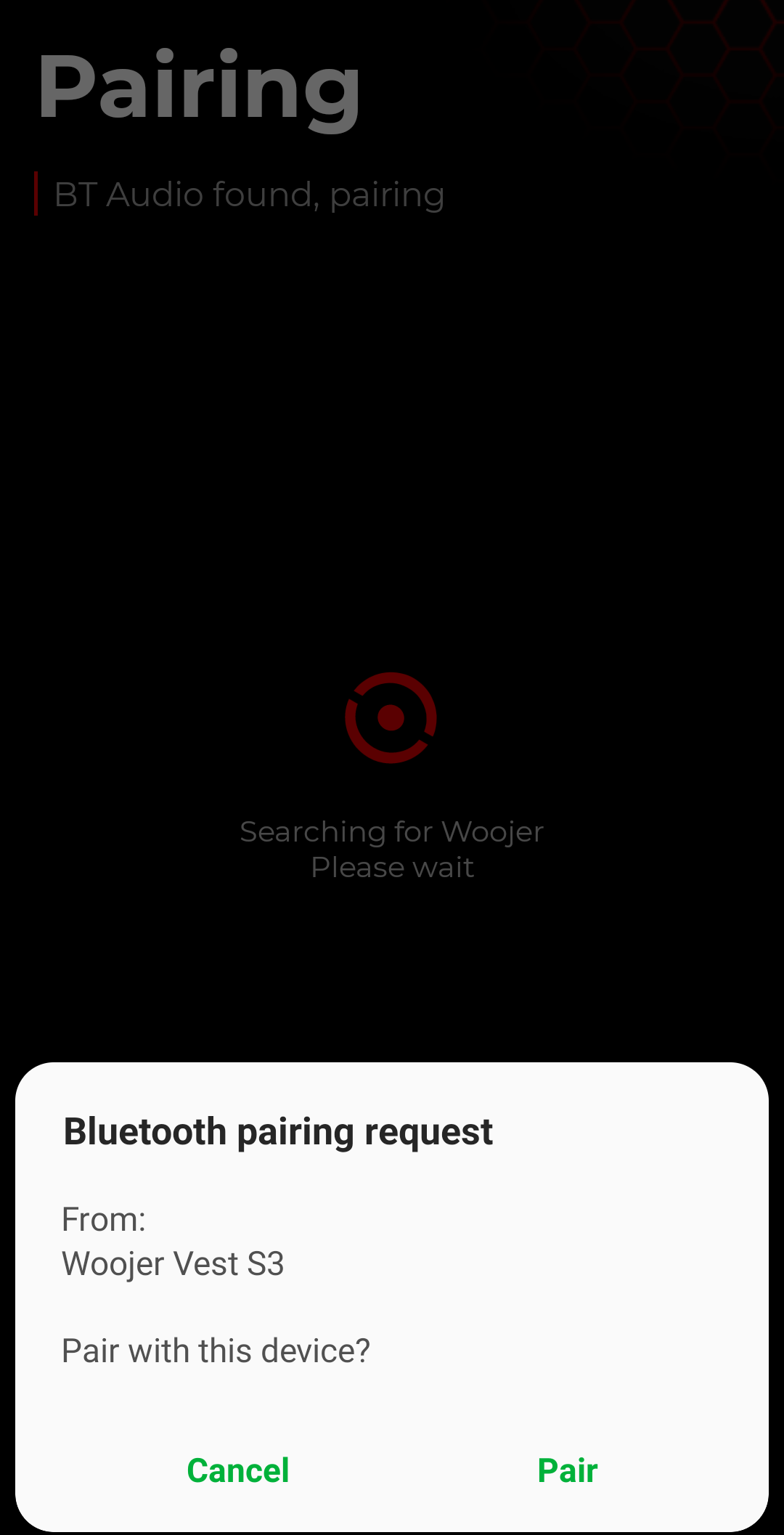
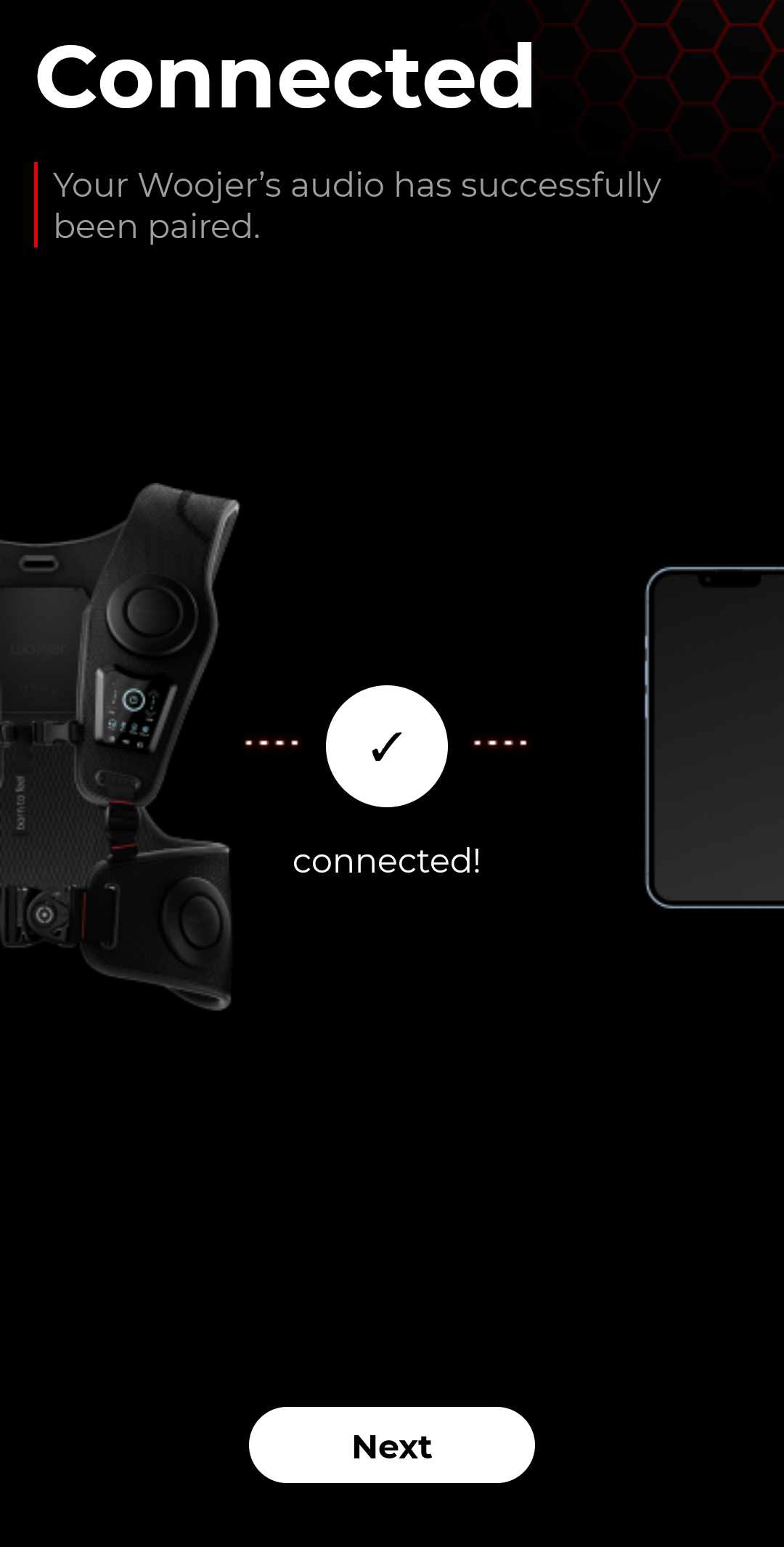
- After your Woojer restarts, you'll be prompted to pair the Woojer with your phone via Bluetooth for audio connectivity.
This step does not associate the Woojer with the app and only prompts you to connect the Woojer to your mobile device via Bluetooth for audio connectivity as the source.
If you'd like the Woojer to be connected to a different source, you can choose the "Skip" option during this step.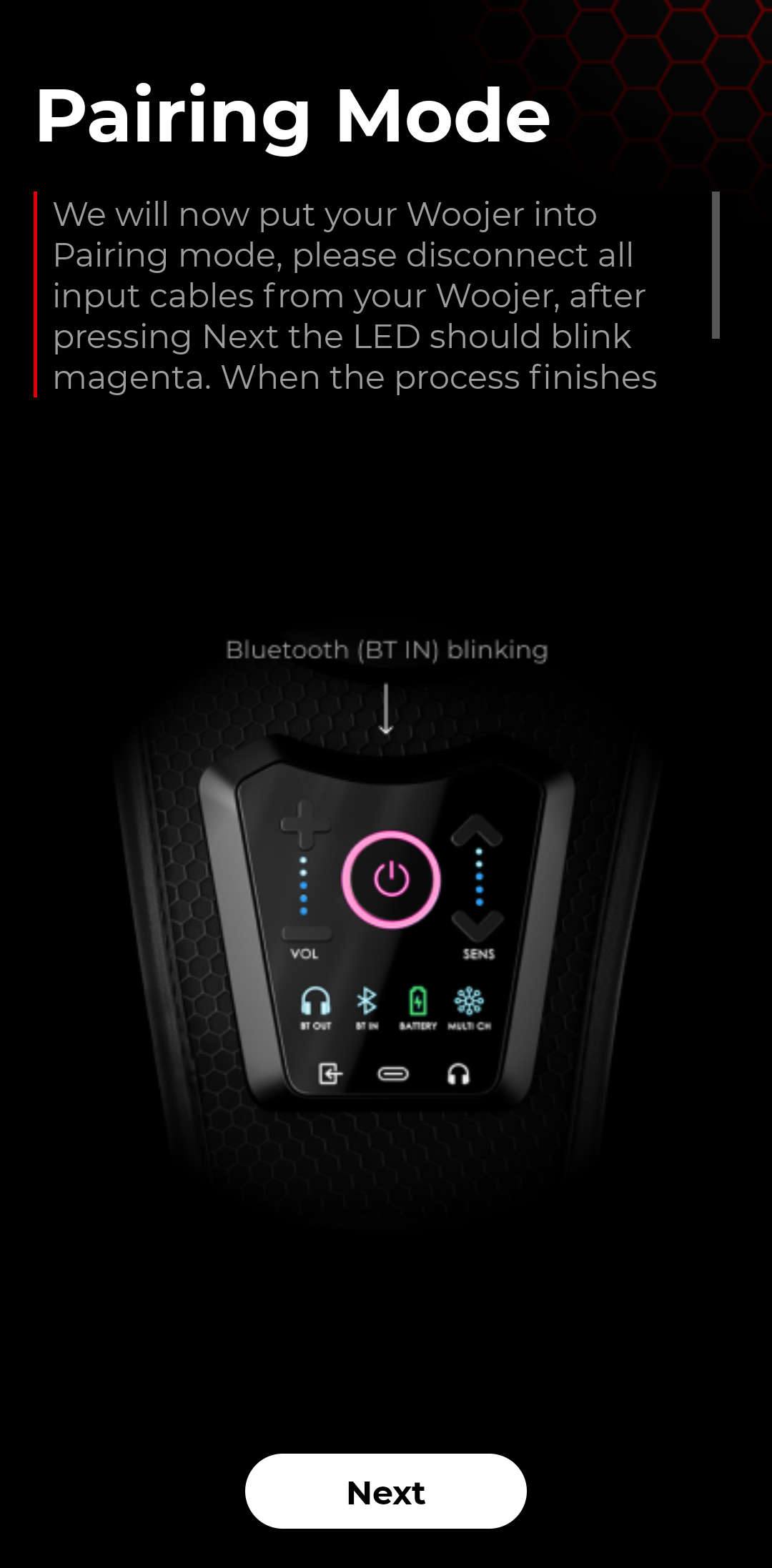
- After performing all the previous steps, your Woojer will be associated with the app, and you'll be redirected to the following control screen.

The control screen of the app allows you to review your Woojer's current battery level, control the volume of your source, control the haptic levels of your Woojer, and see which devices are currently connected to the Woojer, both audio source and headphones.
After you've finished setting up your Woojer with the app, you could use it to pair your Bluetooth headphones, update your Woojer's firmware, adjust the Woojer's default device settings, and more!