
General
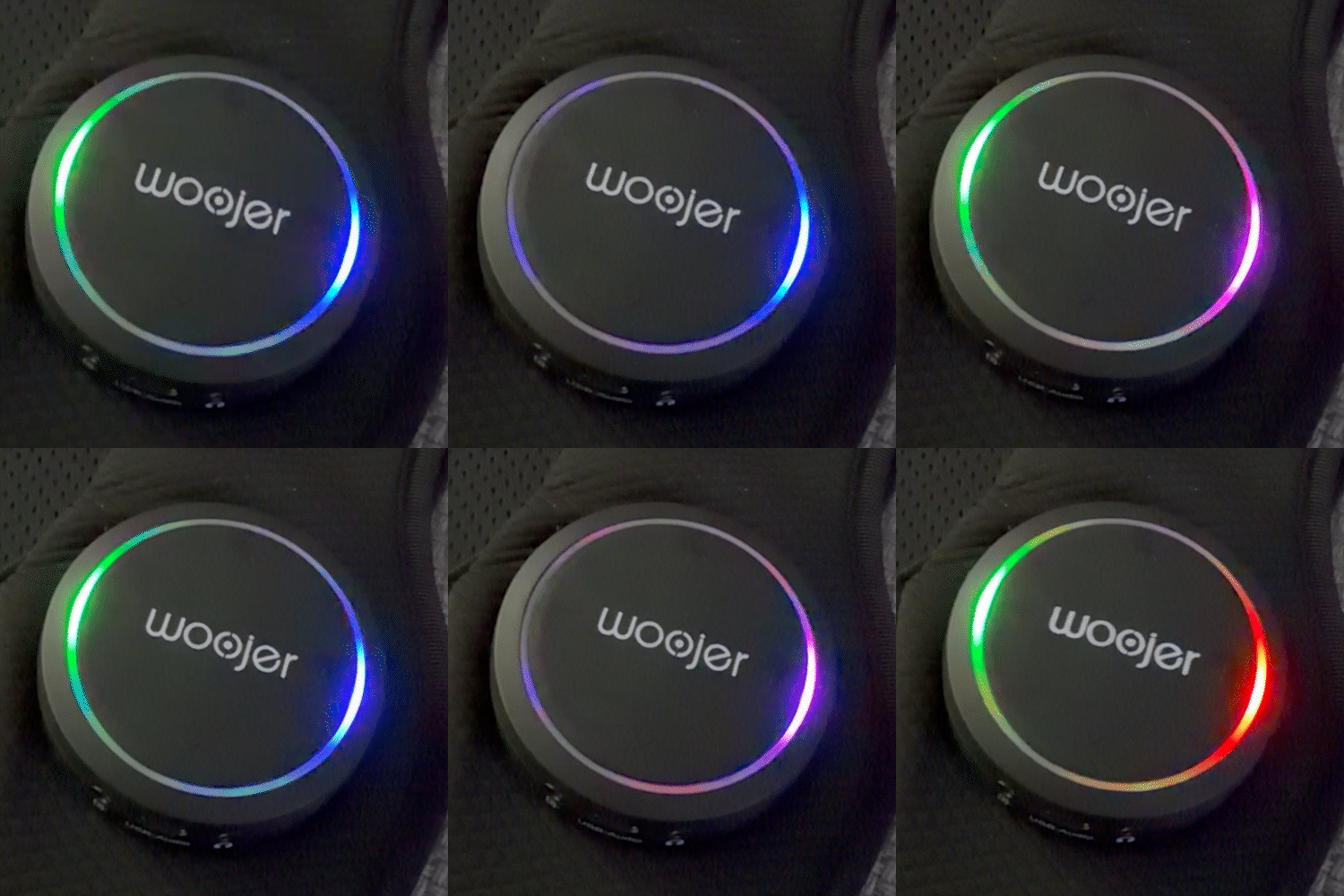
In some rare cases, due to a communication error during the Woojer Vest 4 firmware update, the following situation may occur: After completing the update, the Vest should restart normally, but in this specific scenario, it fails to recover and instead shows the following LED pattern, with an alternating red-blue on one side and blinking green on the other.
This LED combination indicates the Vest is stuck in an incomplete firmware state. In this case, the Vest cannot recover on its own and must be restored using a USB firmware update on a Windows PC.
How to Fix It (Windows PC Required)
Follow the steps below to restore your Woojer Vest 4.
1. Download the Firmware Recovery Tool
Click this link to download the Windows-only firmware recovery tool.
This package already contains the latest firmware version.
Save it to an easy-to-find location (Desktop recommended).
2. Prepare the Vest
Make sure the Vest is powered off before starting. You will need the charger and its cable, and an additional USB-C cable to connect your Ves to your PC.
3. Enter Programming Mode
Locate the pin-reset hole above the chest USB data port.
Using a paper clip, press the pin-reset button once.
Connect the chest USB port to your Windows PC.
Press and hold the Volume+ and Haptics+ buttons together (See photo below).
While still holding both buttons, plug the rear USB port into a wall power source.
Keep the buttons pressed until a new device named RP2350 appears on your PC (See photo below).
Release both buttons.
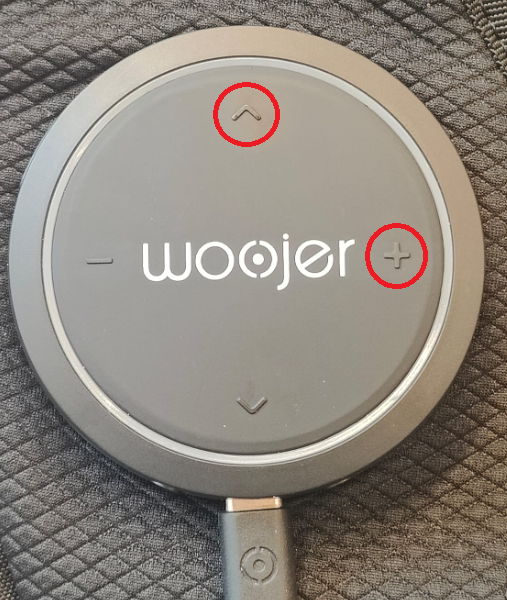
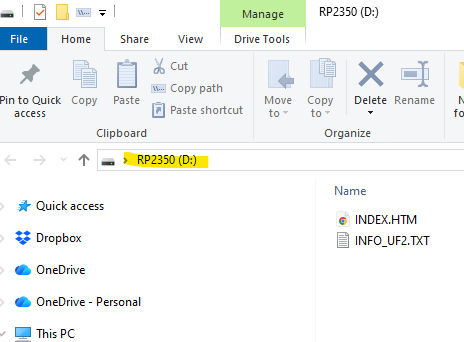
Important: The charging ring must not light up in this mode. If it does, repeat the steps above.
4. Run the USB Firmware Recovery
Open the folder you downloaded in Step 1.
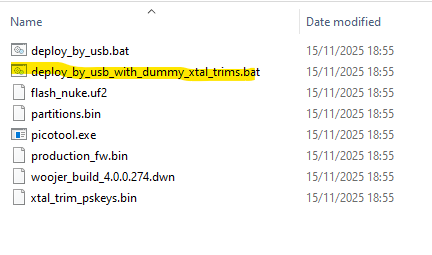
Run the file:
deploy_by_usb_with_dummy_xtal_trims.bat (See photo below)Four progress bars will appear.
When the fourth progress bar disappears, the Vest will begin updating its internal modules and the app will close its own window.
During this process, the LEDs may rotate in magenta, cyan, green patterns and other color patterens - this is normal.
When the update completes, the Vest will reboot into normal operation.
5. Verify Successful Recovery
A successful recovery will show:
Led pattern according to your Vest state (For example: blue LED while searching for input/output, or your personal color/pattern if both Bluetooth source and headphones are connected)
Normal response to button presses
Audio-searching behavior after boot
Your device is now ready!
Still Having Issues?
Please contact Woojer Support if one of the following occurs:
RP2350 does not appear
The
.batfile failsThe LEDs do not return to normal behavior